How to Recover Deleted Files Using MT Manager
Losing important files on your Android device can be frustrating—whether it’s photos, documents, APKs, or game data. The good news is that tools like MT Manager can help you recover deleted files or at least give you a strong chance of getting them back. Learn how file recovery works in MT Manager, step-by-step recovery methods, and practical tips to improve your success rate.
Can MT Manager Recover Deleted Files?
Let’s be clear first:
MT Manager is primarily a file manager + APK editor, not a dedicated recovery tool. However, it can help recover deleted files in certain situations, especially if:
- Files were recently deleted
- Storage hasn’t been overwritten
- You have root access (higher success rate)
So while it’s not like professional recovery software, it’s still surprisingly useful if you act quickly.
How File Deletion Works (Simple Explanation)
When you delete a file on Android:
- The file is not immediately erased
- The system simply marks that space as “available”
- Until new data overwrites it, recovery is possible
👉 This is why timing is critical. The sooner you try recovery, the better your chances.
Learn More About How To Install MT Manager
Method 1: Check Recycle Bin / Trash (If Available)
Some Android systems and apps temporarily store deleted files.
Steps:
- Open MT Manager
- Navigate to:
- Internal Storage
- DCIM / Pictures / Downloads
- Look for folders like:
.trash.recycle.deleted
Why this works:
Some apps don’t permanently delete files—they just move them.
Method 2: Recover from Cached or Hidden Files
MT Manager is powerful because it lets you access hidden directories.
Steps:
- Open MT Manager
- Tap the menu (three dots)
- Enable:
- ✔ Show hidden files
- Go to:
/Android/data//Android/media//DCIM/.thumbnails/
What to look for:
- Cached images
- Temporary files
- Duplicate backups
👉 Sometimes deleted files still exist in these locations.
Method 3: Use Root Access (Advanced & Powerful)
If your device is rooted, MT Manager becomes much more powerful.
Why root helps:
- Access to system-level storage
- Ability to scan deeper directories
- Higher recovery chances
Steps:
- Open MT Manager
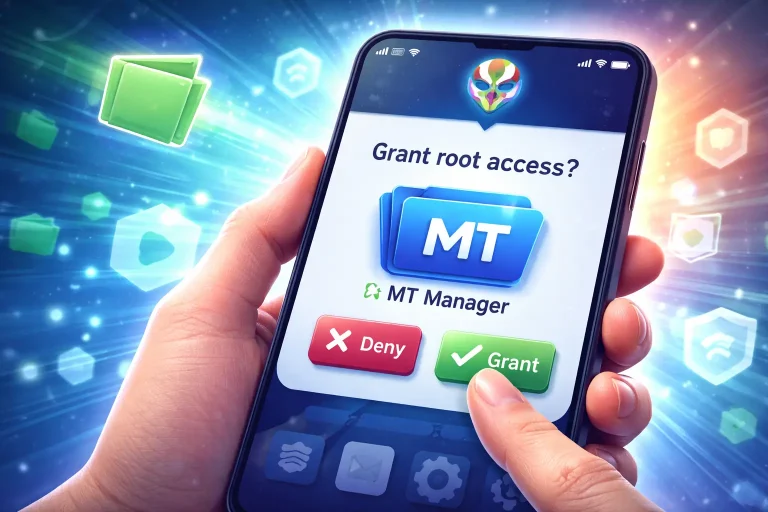
- Grant root permissions
- Navigate to:
/data//system/
- Search manually for:
- File names
- File extensions (e.g.,
.jpg,.apk,.mp4)
Pro Tip:
Use the search feature in MT Manager to quickly locate file fragments.
Method 4: Recover APK Files
If you deleted an app APK, recovery is easier.
Steps:
- Open MT Manager
- Go to:
/data/app/(root required)/storage/emulated/0/Download/
- Look for:
- Old APK backups
- Cached installation files
👉 MT Manager often keeps traces of installed apps.
Method 5: Check Backup Locations
Before trying complex recovery, check if you already have backups.
Common locations:
/MT2/backup//Download//Documents/
Also check:
- Google Drive
- Cloud backups
- SD card storage
Important Tips to Increase Recovery Chances
If you really want your files back, follow these immediately:
Stop using your phone
New data can overwrite deleted files.
Avoid installing new apps
This reduces recovery chances.
Act quickly
The longer you wait, the harder recovery becomes.
Use airplane mode
Prevents background downloads that overwrite storage.
When Recovery May Not Work
Let’s be realistic—recovery isn’t always possible.
You may fail if:
- Files were deleted long ago
- Storage has been heavily used since deletion
- Device auto-cleaned cache
- Factory reset was performed
Alternative Recovery Options
If MT Manager doesn’t work, try combining it with:
- Dedicated recovery apps
- PC-based recovery tools
- Cloud restore options
MT Manager works best as a first attempt tool, not a guaranteed solution.
How to Prevent Data Loss in Future
Instead of recovering files, it’s smarter to avoid losing them.
Best practices:
- Regular backups (weekly)
- Use cloud storage
- Keep copies of important APKs
- Avoid random file deletion
Safe Download Reminder
If you don’t already have MT Manager, make sure to download it from a trusted source.
You can always find the latest and verified version on your site 👉 mt-manager.net
Final Thoughts
MT Manager isn’t a full-fledged recovery tool, but it’s surprisingly capable when used correctly. If your files were deleted recently and your storage hasn’t been overwritten, you still have a solid chance of recovering them.
The key is simple:
👉 Act fast, explore hidden paths, and avoid overwriting data.
FAQs
Can MT Manager fully recover deleted files?
Not always. It depends on how recently the file was deleted and whether the storage was overwritten.
Do I need root access?
No, but root significantly improves recovery success.
Is MT Manager safe to use?
Yes, if downloaded from a trusted source like your website.
What files can be recovered?
- Images
- Videos
- APKs
- Documents (in some cases)